Our Flush devices don’t support over-the-air (OTA) software updates (SW).
On the other hand, most of Z-Wave gateways on the market do not support OTA updates. Consequently, even if Qubino devices supported OTA, there is a big chance you would not be able to update the SW over-the-air, since your gateway may not have this option.
Although Qubino Smart Meter, 3 Phase Smart Meter, Smart Plug and RGBW Dimmer support OTA SW updates, we couldn’t help our customers with updates, since there was no software available for the end user, to use it for the OTA updates. In the 2019, Silicon labs decided to make the software available also for the end users. Nevertheless, the user has to get a Z-Wave USB (if he/she doesn’t already have one) and download the software to be able to update these devices.
Guide to do the OTA with PC controller:
To be able to do the OTA update you will need a z-wave USB stick and a PC with the Windows OS installed, to be able to use the PC controller (free software) which will allow you to update devices via OTA any z-wave device.
The mentioned software if free to use and download from the Silicon Labs website. You will need to register and download the SDK to be able to use the software. If you have troubles with that you can find a copy of the program here.
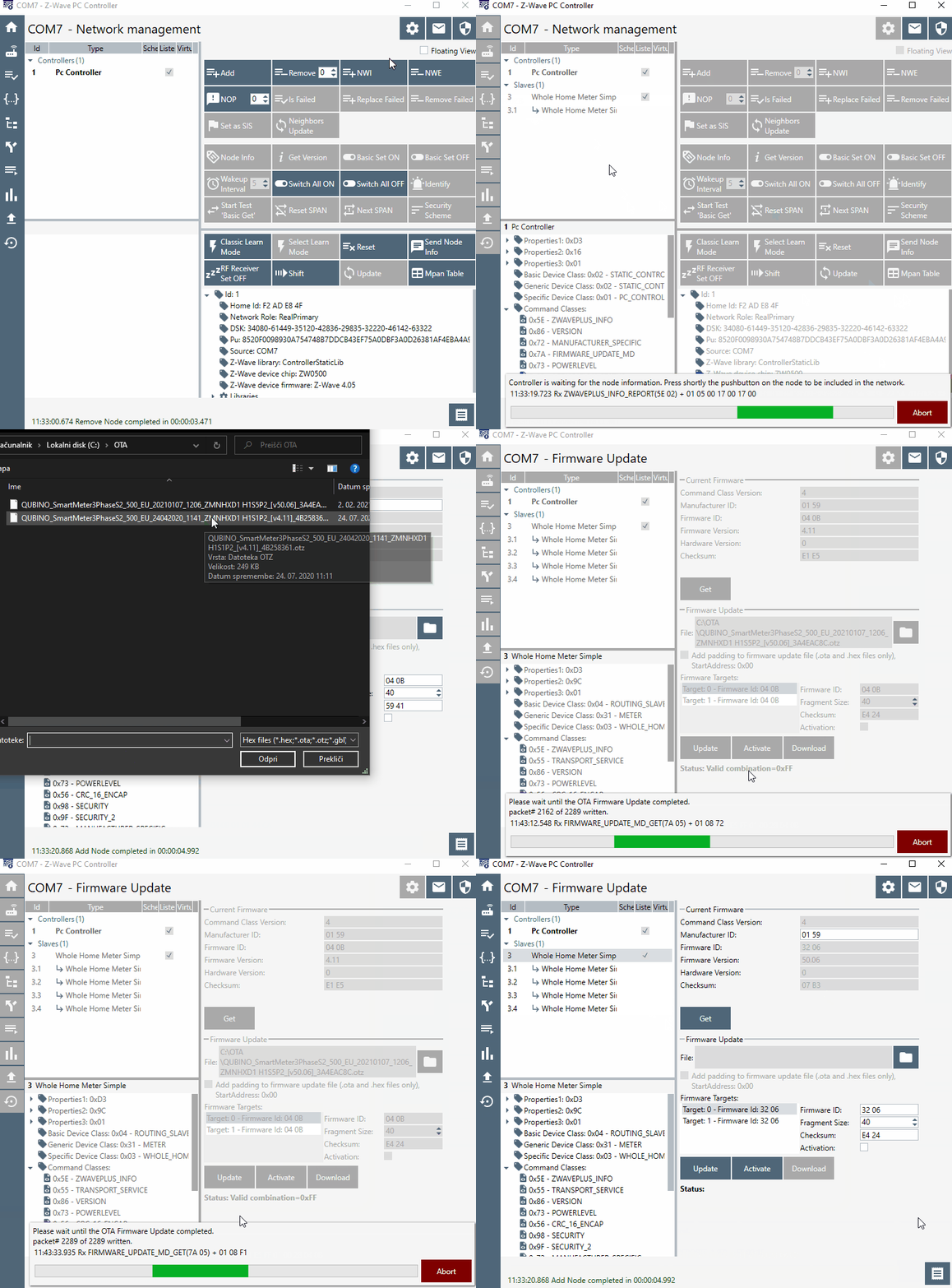
After you install the program connect the USB to your PC and in the PC controller under settings select the right USB port. After that include the Smart Meter by clicking add. If you have trouble to include it and you notice that LED1 is turned on (no blinking) you will have to exclude the smart meter (the LED1 should be blinking) and re-include it again in the PC controller.
Below you will find a GIF on how to include the device and start the OTA update. During the update check the status bar, there you will also see when the process would finish, if the process stuck at any point, just click Abort and try again. When the process will finish positively there's no special sign, but you will see it in the status bar that the process is not running anymore, and it disappear.
Before you run the update is good to write down the Check Sum in the Current Firmware space, you will get that that you will get value after you run the Get button. After you do the update compare the new check sum with the one you mark down before the update. If the update was successful, the value must be different.
In case you have a strange behavior of the device after the update, you can set all the default values running the RESET command.